 DriveSync
Free Google Photos Storage for Life: The Old Pixel Trick Google Still Allows
Your Google storage is full and Google wants you on a paid plan. Meanwhile, a phone you can pick up second-hand gets you unlimited Google Photos backup for free, for life, with no subscription. Google built it in, and it is still in Google's own help pages today.
The phone is an old Pixel. Some people keep one at home just for this: they send their photos to it, it uploads them, and their 15 GB of Google storage (shared by Gmail, Drive and Photos) stays untouched. Here is how it works, what you need, and what can go wrong.
Why an old Pixel backs up for free
When Google ended free unlimited backup for everyone on 1 June 2021, it kept an exception for older Pixel phones. That exception is still written into Google's own help pages today. About your Google Photos activity & storage says that if you have a Pixel 5 or earlier, you get unlimited storage for photos and videos backed up from your device at no charge.
Google's help page currently shows no end date for this, though Google could change it.
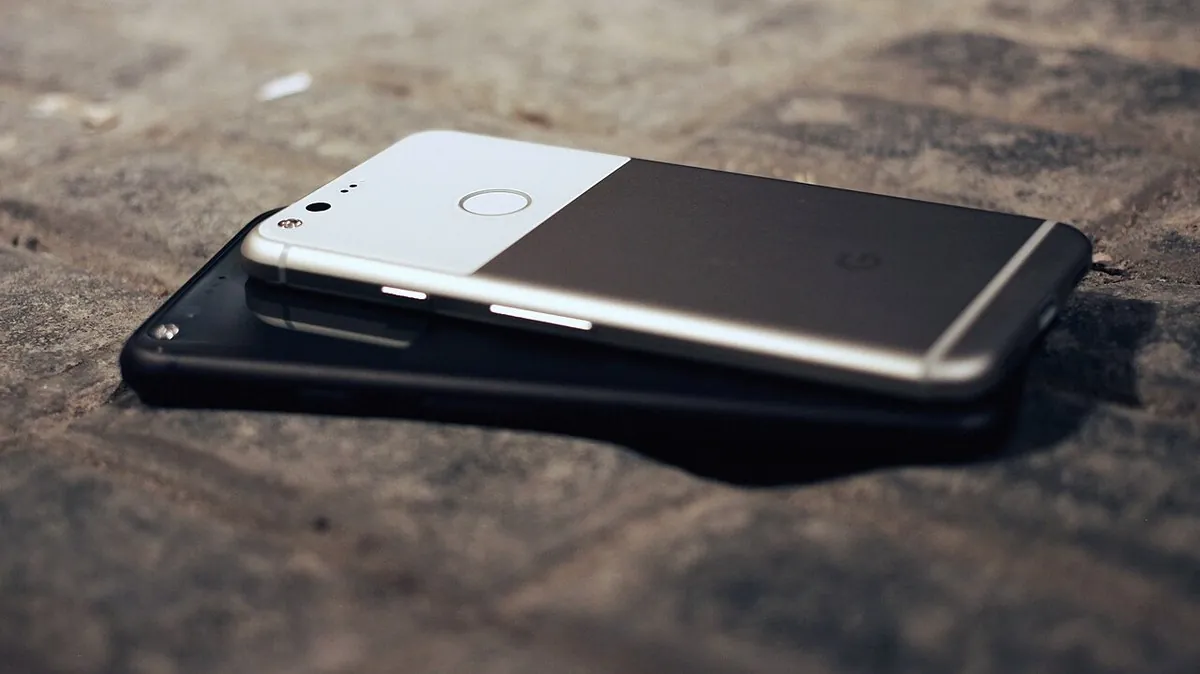
Maurizio Pesce from Milan, Italia, CC BY 2.0, Wikimedia Commons
Which Pixel you need
The quality of the free backup depends on the model. This is how Google's backup quality page (Android tab) puts it, checked on 26 November 2026:
| Phone | What is free |
|---|---|
| Pixel (1st generation, 2016) | Unlimited, Original quality |
| Pixel 2, Pixel 3 | Unlimited, Storage saver (for anything backed up after the cut-off dates in 2021 and 2022) |
| Pixel 3a, 4, 4a, 5 | Unlimited, Storage saver |
| Pixel 5a, Pixel 6 and later | Nothing extra. Backups count toward your storage |
Watch the names. A Pixel 5 qualifies, a Pixel 5a does not. If your model has a variant name (XL, 5G), check it against Google's page before you rely on it.
Storage saver is a compressed copy. Google says photos larger than 16 MP are resized to 16 MP and videos above 1080p are resized to 1080p. For everyday phone photos the difference is hard to spot. For 4K video it is a real downgrade. Only the first-generation Pixel keeps the original file for free.
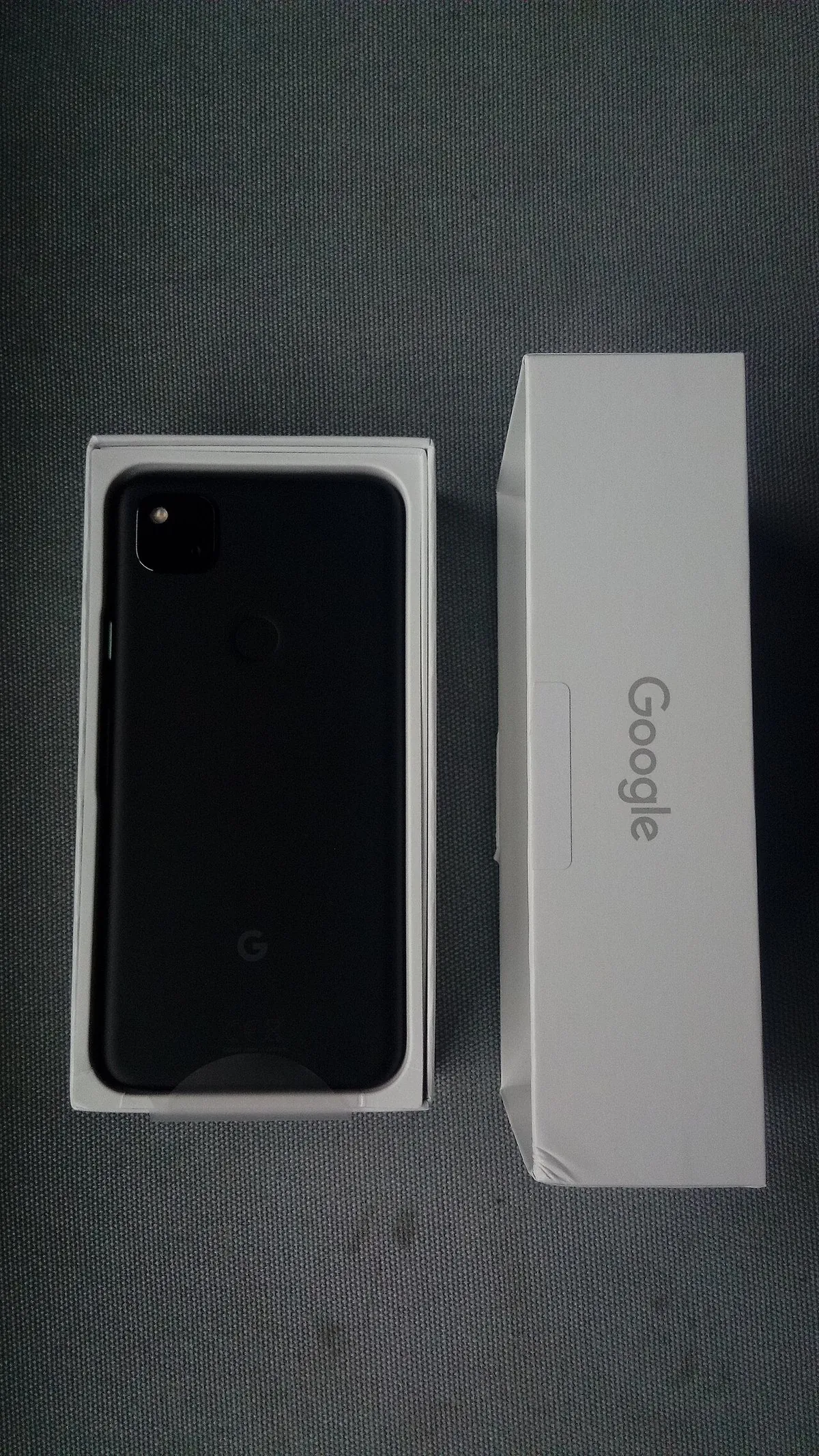
Donald Trung Quoc Don, CC BY-SA 4.0, Wikimedia Commons
The exact cut-off dates are in the full table in our OneDrive-to-Pixel guide.
What you need
- A qualifying Pixel. One you already own, or a used one. It does not need a SIM card, only Wi-Fi.
- The same Google Account on the Pixel as the one your photos should end up in.
- Backup turned on in Google Photos on the Pixel: tap your profile picture, then Photos settings, Backup.
- The right quality. On a Pixel 2 to 5, set Photos & videos quality (on the same Backup screen) to Storage saver. Original quality backups count toward your storage.
- A charger and Wi-Fi. The Pixel does the uploading, so it needs to stay on.
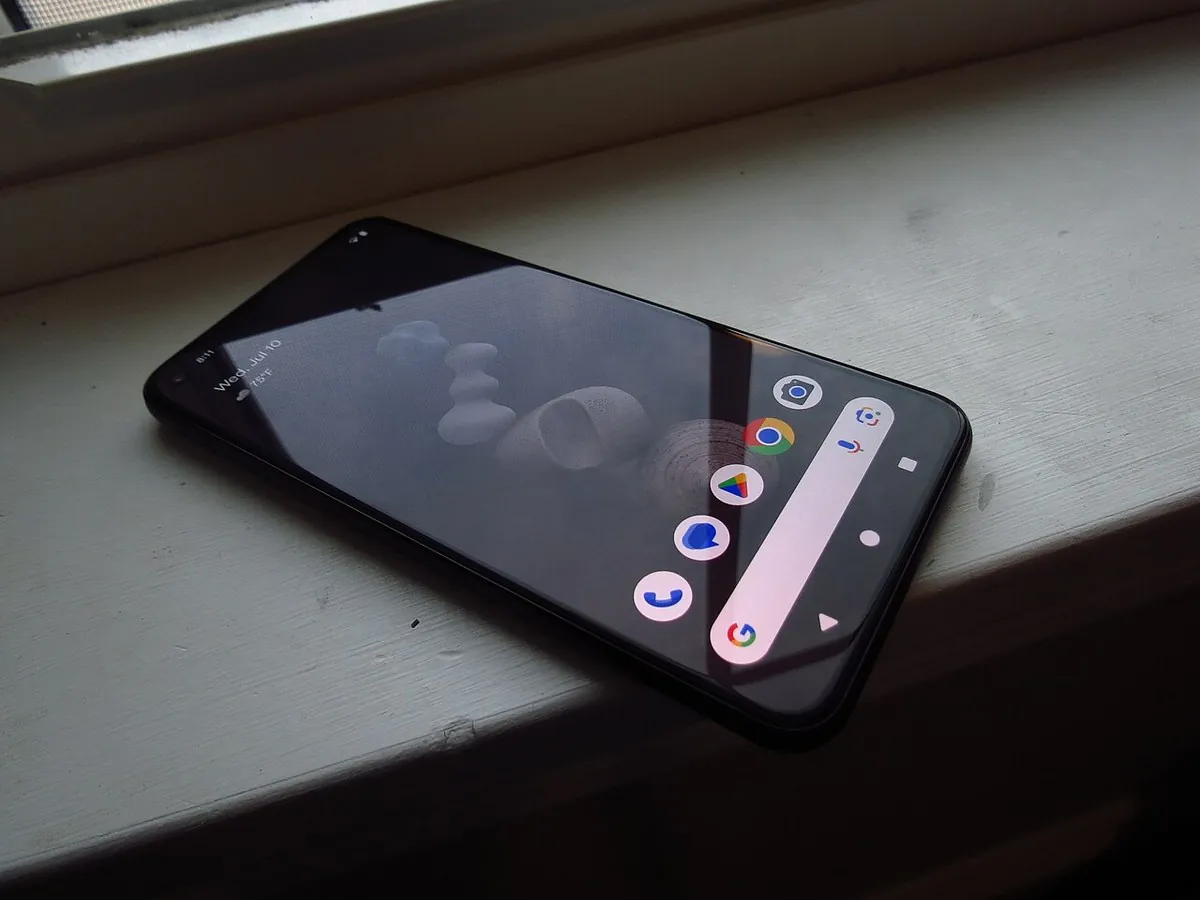
ShadowRobotnikULF, CC BY-SA 4.0, Wikimedia Commons
Getting photos from your main phone onto the Pixel
This is the part people find fiddly. Google's wording is "backed up from your device", so the photos have to reach the Pixel first and be uploaded by it. Copying them into Google Photos from a computer or a newer phone is a normal upload and uses your storage.
People usually do it in one of three ways.
1. A sync app between the two phones
Apps such as Syncthing or FolderSync can copy new photos from your main phone to the Pixel over Wi-Fi, mostly on their own once set up. We have not tested them for this guide, so follow their documentation. Two things to check:
- Put the photos where Google Photos will pick them up. It backs up the camera folder,
DCIM/Camera, automatically. Any other folder needs to be switched on under Back up device folders in the Pixel's Google Photos settings, as Google's backup page explains. - If synced photos do not show up in Google Photos at all, Android may not have indexed them as media yet. A thread on the Syncthing forum, Images are not indexed at Android OS level, deals with exactly this.
2. A computer and a USB cable
Copy the photos from your main phone to a computer, then into DCIM/Camera on the Pixel. It is manual, but it needs no extra apps and you see exactly what you copied.
3. A cloud service in between
If your main phone already uploads to another cloud, such as OneDrive or Dropbox, you can pull the photos from that cloud onto the Pixel and let Google Photos take it from there. This is also how people empty a full OneDrive into Google Photos.
Whichever route you choose, turn Backup off in Google Photos on your main phone if it uses the same Google Account. Otherwise the main phone uploads its own copy too, and that copy counts toward your storage.
The catches
- Photos not taken on the Pixel. Google's help page talks about photos "backed up from your device" and, in its Pixel section, about photos "you take on your Pixel". It does not say outright whether photos that came from another phone are covered. So test it yourself before moving everything: note the storage figure in your Google Account, back up a few hundred photos through the Pixel, and check a day later that the figure has not gone up.
- Compression. On a Pixel 2 to 5 the free copy is Storage saver. If the originals matter, keep them on a computer or an external drive as well.
- Inactive accounts. The same Google page says photos might be deleted if you do not use Google Photos for two years or more. Open Google Photos on the Pixel from time to time.
- An old phone, always plugged in. None of these models still gets Android or security updates from Google, according to Google's update page. Use it only as an upload box, not as your everyday phone, and keep an eye on the battery, since old batteries can swell.
- Phone storage. When a batch has finished uploading, use Free up space in Google Photos to remove local copies that are already backed up, then send the next batch.
If your photos are in OneDrive
We are the team behind DriveSync, an Android app built for this step. It runs on the Pixel and moves photos from OneDrive straight into DCIM/Camera, where Google Photos backs them up. Each file is checked by size and hash before the OneDrive copy is removed, and the space comes back once you empty the OneDrive recycle bin on the web. The free version handles files up to 100 MB each. Our OneDrive guide covers the whole process, with and without the app.
DriveSync is an independent app and is not affiliated with or endorsed by Google or Microsoft.
More guides
- Which Pixel Phones Still Get Unlimited Google Photos Storage? A Model-by-Model CheckPixel 5 yes, Pixel 5a no. Which Pixels still back up to Google Photos for free in 2026, how to tell which model you have, and how to check it works.
- How to Move OneDrive Photos to Google Photos With an Old PixelWhich older Pixels still back up to Google Photos for free, what Storage saver does to your photos, and how to move a full OneDrive onto the phone.